
12 Progressive Web App Design Strategies (From Experts)
 By
By Share

Share
Get a quick blog summary with



Users expect your mobile site to work like a real app. It should load fast, work offline, send push alerts, and sit on the home screen.
Most websites still fail at one or more of these. When that happens, users leave. Slow load times and connection errors hurt sales, signups, and trust.
Building separate iOS and Android apps costs time and money. A Progressive Web App solves this. It delivers an app-like experience using one web codebase.
It updates instantly, works offline, skips app store delays, and costs much less.
What is a Progressive Web App (PWA)?
A Progressive Web App is a web application that uses modern browser capabilities to deliver a native-app experience that is fast, reliable, and engaging across devices while running from a single codebase.
Google, Microsoft, and the W3C define a PWA based on three core pillars plus progressive enhancement:
- Capable: Uses technologies like Service Workers, Web App Manifest, Web Push, Background Sync, IndexedDB, and other modern APIs
- Reliable: Loads instantly and continues working offline or on unstable networks
- Installable: Can be added to the home screen and launched without browser chrome
When should a company choose a PWA instead of building a mobile app?
Choosing a Progressive Web App over a native mobile app is not a downgrade. It’s a strategic call about how fast you want to ship, who you need to reach, and how much you want to spend to get there.
Here are the scenarios where a PWA clearly makes more sense.
When Speed-to-Market Is Critical
If your team needs to launch quickly, validate an idea, or iterate often, a PWA is usually the fastest route to market. With a single codebase and no app store approvals, you can ship updates the same day instead of waiting weeks for reviews.
This is especially useful for:
- Early-stage products and MVPs
- Time-sensitive launches like events, campaigns, or seasonal offerings
- Teams that ship frequent fixes and UX improvements
When Users Need Instant Access (No Downloads)
Every download step introduces friction, and many users drop off when asked to install a 30–50 MB app before taking action. PWAs run directly in the browser and can still be added to the home screen later, keeping the path to action short.
This model works well for:
- Event ticketing and check-in flows
- Food delivery and quick commerce
- Ride-booking and other on-demand services
When Your Audience Is Global or Bandwidth-Constrained
In emerging markets, users often have limited storage and slow or unstable connections. A lightweight PWA (often under 1 MB) often performs far better than a heavy native app and uses far less data.
PWAs are ideal when:
- Users are on low-end or older devices
- Network connectivity is inconsistent
- Data usage needs to stay minimal
Flipkart’s PWA, for example, significantly reduced data usage while increasing time-on-site 3x and conversions by 70% in bandwidth-constrained regions.
When Most of Your Traffic Is Already Mobile Web
If a majority of your users come from mobile browsers, it makes more sense to improve that experience rather than forcing a platform switch.
PWAs are a strong fit when:
- 60–70%+ of traffic is mobile web
- Users already interact through links, search, or social
- The product works well in a browser today
Companies like Twitter and Starbucks use PWAs to serve web-first users, while reserving native apps for power users.
When You Want One Codebase Across Devices
Maintaining separate iOS and Android teams significantly increases development and maintenance costs. PWAs allow teams to build once and deploy across all modern browsers and devices.
This approach works best for:
- SaaS dashboards and admin tools
- Marketplaces and booking platforms
- B2B products with frequent feature updates
A single tech stack also simplifies testing, analytics, and long-term maintenance.
👉 For teams building cross-platform solutions, explore our cross-platform app development services to understand how frameworks like Flutter and React Native can accelerate your timeline.
Core progressive web app design strategies
1. Building Fast Loads with Core Web Vitals and HTTP/3
The first few seconds decide whether users stay or leave your PWA. Core Web Vitals are 3 easy to understand measurements of how fast and stable the experience feels.
- Largest Contentful Paint (LCP) checks how quickly the main content loads. Aim for under 2.5 seconds.
- Interaction to Next Paint (INP) measures how fast the app responds to user actions. Keep it under 200 ms.
- Cumulative Layout Shift (CLS) tracks layout shifts during loading. Stay below 0.1.
Performance also depends on how efficiently the browser connects to the server.
HTTP/3 loads assets in parallel and handles poor mobile networks better. Most hosts support it, and enabling it can reduce load times by 20–30%.
Action Items:
- Run a mobile Lighthouse audit in Chrome DevTools and prioritize fixing LCP, INP, and CLS issues marked red or yellow.
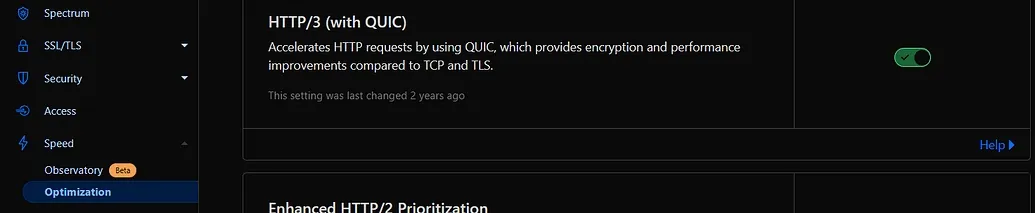
- Enable HTTP/3 in your hosting dashboard (for example, Cloudflare or Fastly) and confirm the protocol shows as h3 or quic.
This visual is of HTTP/3 ( with QUIC) in Cloudflare:
- Extract the CSS needed for the top portion of the page and inline it in the <head> tag so it loads immediately.
- Convert images to AVIF format using Squoosh.app or Cloudinary, and always include width and height attributes to prevent layout shifts.
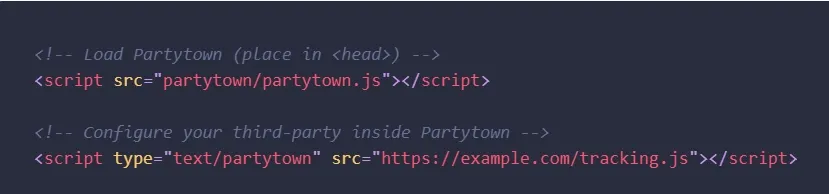
- Move heavy third-party scripts, like analytics, to Partytown so they do not block user interactions.
Here's a simple Partytown implementation example:
👉 If you're looking to improve your website's performance and conversion rates, consider our conversion rate optimization services, which include detailed performance audits.
2. Enabling True Offline Use with Background Sync
Background Sync allows a PWA to save user actions, such as orders or messages, and automatically send them once the internet connection is restored. On Android, this happens in the background. On iOS, syncing usually resumes when the app is reopened.
This reduces data loss and builds trust, especially for users working on the move, such as field teams or B2B tools used outside the office.
Action Items:
- Add Google’s Workbox library to simplify caching and pre-cache core HTML, CSS, and JS files during install.
- Use the Dexie.js library to store and retrieve user data in IndexedDB instead of writing complex code from scratch.
- Handle form submissions in the service worker, store them locally, and sync them using the Background Sync API when the connection returns.
- Show clear feedback like “Saved offline, syncing when connected” so users trust their data is safe.
- Test the flow by using the app in Airplane Mode on a real device, then reconnect to confirm automatic syncing.
3. Adding Predictive Prefetch for Instant Navigation
Even a one-second delay after tapping a link can feel slow.
Predictive prefetch loads the page a user is most likely to visit next while they are still on the current page. For example, a product details page can start loading in the background from a product list.
The result is near-instant navigation, higher pages per session, and a smoother experience for content-heavy apps like marketplaces, news sites, and dashboards.
Action Items:
- Prefetch the 2–3 most likely next pages by adding <link rel="prefetch"> tags in the <head>.
- Enable navigationPreload in your service worker so the next page starts loading as soon as a link is clicked.
- Use Workbox to cache common next-page assets during idle time or on Wi-Fi.
- Track navigation clicks in Google Analytics to identify real user paths and update your prefetch list.
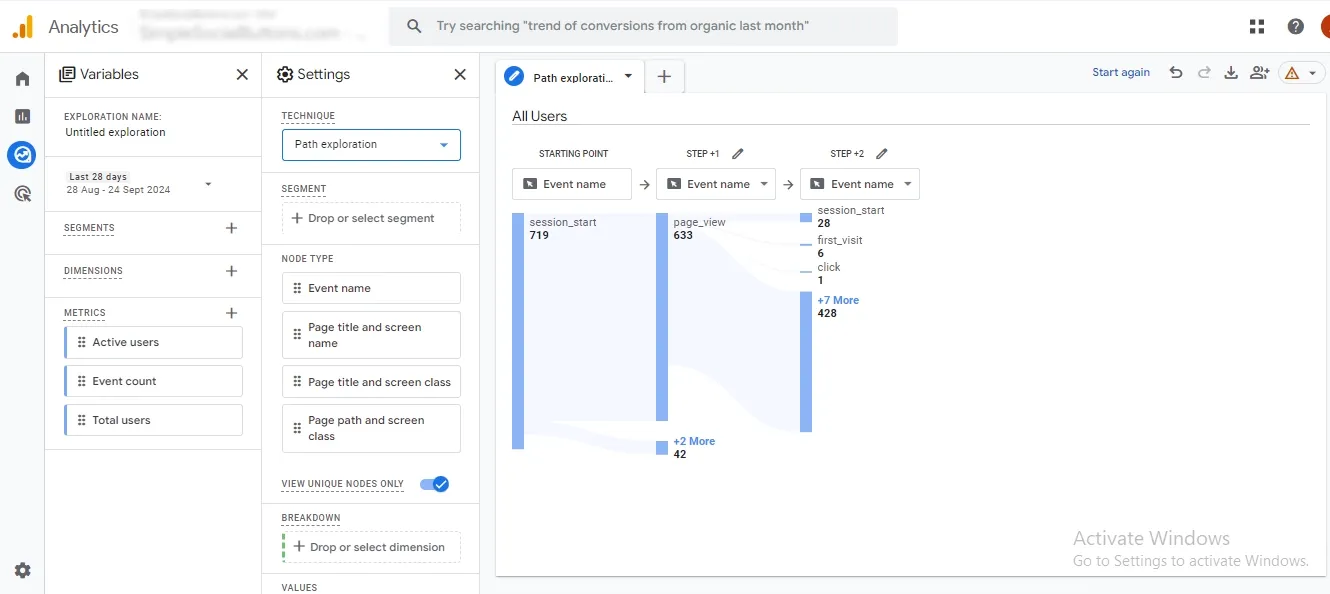
- Review prefetch effectiveness in chrome://serviceworker-internals and refine as needed.
4. Using Container Queries for Flexible Layouts
Container queries let components adapt to the space they have, not the size of the screen.
For example, a card can switch from one column to two when its container grows. This makes layouts more reliable on foldables, resizable windows, and embedded components.
This works perfectly on foldable phones, resizable desktop windows, or when embedding components.
Action Items
- In CSS, add container-type: inline-size; to any parent element, such as a card or grid item.
- Write @container (min-width: 300px) { ... } rules for the children, similar to media queries but scoped locally to the container.
- Combine container queries with clamp() for smooth, fluid text and spacing.
- Test by resizing the parent element in Chrome DevTools and watching styles update live.
- Include the free container-query-polyfill for older browsers like Safari if needed.
5. Designing Mobile-First Flows with Voice Controls
Mobile-first design prioritizes the phone experience before scaling to larger screens. Since most users access apps on mobile, this approach encourages clear layouts and fast interactions.
Voice controls enable spoken commands through the browser’s Web Speech API, making actions like search or navigation easier when hands are busy or typing is slow.
For many products, voice works best as an add-on for accessibility and convenience, not a default input method.
Action Items
- In Figma or your design tool, start every screen at phone size and keep main actions in the bottom thumb zone.
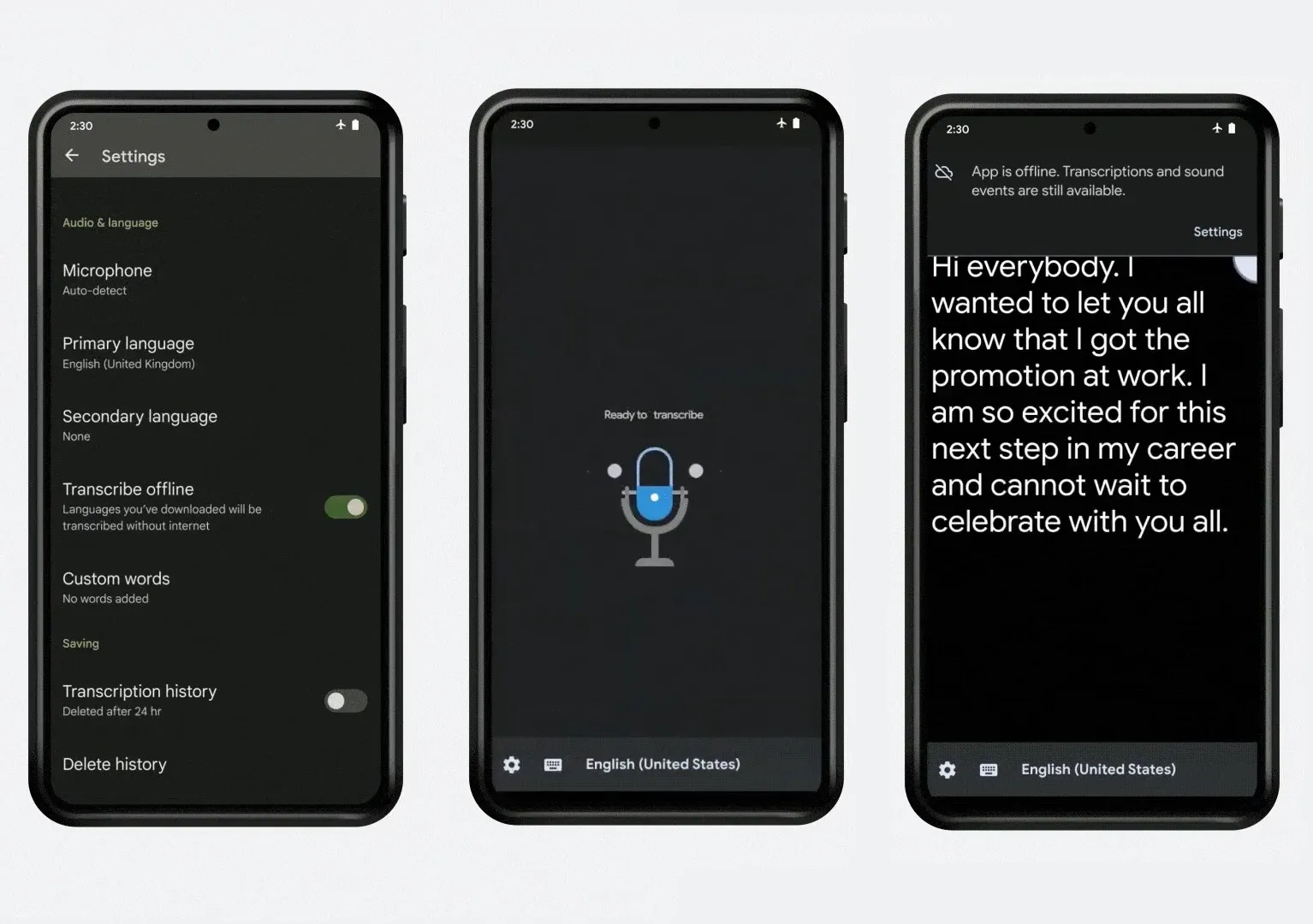
- Add a mic button that starts speech recognition and displays live transcribed text.
This image shows the mic button option along with the transcribed text:
- Test with real users, capture common spoken phrases, and refine your grammar rules.
- Ensure tap targets are at least 48×48 pixels with clear, touch- and voice-friendly labels.
- Request microphone access only when the user taps the mic for the first time.
6. Creating Native-Like UI with System Elements and Haptics
Native apps feel familiar because they follow platform patterns users already know.
PWAs can achieve the same effect by using system fonts, native motion, and built-in feedback instead of custom workarounds.
Using the system-ui font applies San Francisco on iOS and Roboto on Android automatically.
Matching native easing curves keeps animations natural, while subtle haptics, like a brief vibration on send or success, reinforce actions.
Together, these details make the interface feel like a real app, not a website. Interactions feel intuitive, trust improves, and users need less guidance from the first tap.
👉 For inspiration on modern mobile interfaces, check out our curated collection of mobile app login design examples.
Action items:
- Set font-family: system-ui; globally so your PWA uses the native system font on each platform.
- Use transition: all 0.3s cubic-bezier(0.4, 0, 0.2, 1); to mirror common native animation timing.
- Trigger subtle haptic feedback with navigator.vibrate([50]) for key actions like send, save, or confirm, keeping platform support in mind.
- Respect accessibility settings by reducing or disabling animations with @media (prefers-reduced-motion: reduce).
- Compare your PWA side by side with real native apps on Android and iPhone to evaluate motion, feedback, and overall feel.
7. Supporting Natural Gestures for Intuitive Interaction
Familiar gestures make a PWA feel instantly natural. Common swipes for actions like back or reveal options keep interactions fast and consistent across devices.
Design gestures around how people actually hold their phones, with key actions near the bottom and secondary gestures toward the sides.
Action items:
- Add touch-action: pan-y; in CSS on scrollable areas to preserve smooth native scrolling.
- Use pointerdown, pointermove, and pointerup events to detect swipe gestures and add visual cues like icon reveals or background shifts.
- Position primary controls near the bottom or along the sides to align with natural thumb reach.
- Test gesture interactions on real devices, since finger size and grip differ from DevTools simulations.
- Always provide a clear button-based alternative for users who prefer tapping over swiping.
8. Personalizing On-Device with Privacy-First AI
Users love apps that feel personal, but they quickly lose trust if too much data is collected.
On-device AI solves this by keeping everything on the phone, so nothing leaves the device while still learning from user behavior.
This lets the app suggest products, reorder feeds, or fill forms automatically based on local activity. Since all processing happens on the device, it stays private, fast, and works even offline.
Action items
- Load compact models under 10MB using TensorFlow.js or ONNX Runtime Web so they start quickly.
- Use WebNN for hardware acceleration in supported browsers like Chrome and Edge, and fall back to WebAssembly elsewhere.
- Run all model inference inside a Web Worker to keep the UI smooth and responsive.
- Store personalization data in IndexedDB and offer a clear option to reset or turn off personalization.
- Test model performance on mid-range phones to ensure predictions stay under 100 milliseconds.
9. Anticipating User Needs with Local Prediction
Local prediction helps your app feel smart by preparing what users are likely to do next.
For instance, it can pre-fill checkout forms or suggest dashboard actions based on past behavior, all using simple models that run directly on the device.
Because predictions happen locally, they’re fast and privacy-friendly.
When done well, this approach reduces taps, speeds up common tasks, and increases completion rates, making repeat workflows effortless and intuitive for users.
Action Items:
- Log common user paths locally in IndexedDB in an anonymized form and model behavior with a simple Markov chain.
- Run predictions during idle periods using requestIdleCallback to avoid interfering with active interactions.
- Show subtle hints, such as “Ready to checkout?” when the model has high confidence in the next action.
- Move any calculations over 50 milliseconds into a Web Worker to keep the UI responsive.
- Give users clear control with a settings toggle to enable or disable predictive actions.
10. Delivering Smart Contextual Push Notifications
Push notifications can bring users back, but generic alerts often feel like spam. Contextual notifications sent based on user behavior, location, or timing make messages relevant and useful.
For example, notify users when a favorite item is back in stock or remind them of an upcoming meeting.
When notifications are timely and relevant, engagement increases, opt-out rates stay low, and users perceive the app as responsive and personal without feeling overwhelmed.
Action Items:
- Request notification permission only after the user sees a clear value, such as saving an item or completing an action.
- Segment users by past behavior or location and limit notifications to two or three per week.
- Include action buttons like “View now” or “Snooze” directly in the notification to improve engagement.
- Queue notifications in the service worker when the user is offline and deliver them once connectivity returns.
- Track open rates and A/B test message timing and copy to continuously improve performance.
👉 Looking to improve user retention? Read about SaaS UX design best practices that focus on engagement and retention strategies.
11. Achieving Full Cross-Platform Parity in the Post-iOS 17.4 Era
To achieve full cross-platform parity, your PWA needs to handle differences between Android and iOS gracefully.
Recent WebKit updates have improved support for features like push notifications, storage, and haptics, but variations still exist, especially after iOS 17.4.
The best approach is to detect which APIs are available on the user’s device and provide fallbacks or alternative interactions when a feature is missing.
For example, if haptic feedback or push notifications are unsupported, your app can use visual cues or in-app alerts instead.
Action Items:
- Guard API usage with feature checks, for example if ('BackgroundSync' in window), before enabling advanced functionality.
- Use consistent manifest settings, including a 192×192 icon and display: standalone, to ensure a uniform install experience.
- Regularly test push notifications and storage behavior on both iPhone and Android devices.
- Follow resources like caniuse.com and web.dev to stay current on WebKit and browser feature support.
- Add fallback UI messages for rare missing features, such as “Tap to refresh” on older iOS versions.
12. Optimizing for 5G and Edge Networks
5G and edge computing let PWAs deliver content faster by storing data near users and sending only what is needed in small chunks.
Edge workers route requests to the nearest server, and service workers pick the fastest source, minimizing latency and improving responsiveness.
This approach not only speeds up page loads but also makes real-time features like live collaboration, video streaming, and instant updates reliable.
Action Items:
- Keep initial HTML and JavaScript under 50 KB (compressed) and enable Brotli on your CDN for faster delivery.
- Move simple logic, such as routing or A/B tests, to edge workers to achieve sub-10ms responses.
- Use navigator.connection.effectiveType to adjust content quality dynamically, for example, lowering video bitrate on slower networks.
- Enable QUIC and 0-RTT in your server configuration to speed up repeat connections.
- Monitor real-user metrics using Chrome UX Report or your own RUM tool to identify the performance gains from edge deployment.
How much does it cost to design a PWA?
The cost to design a Progressive Web App usually ranges from $5,000 to $120,000+, depending on scope and complexity.
- Basic PWAs with standard UI, responsive layouts, and core features like offline support typically cost $5,000 to $15,000.
- Mid-level PWAs with custom UX, user flows, animations, and integrations often fall between $15,000 and $50,000.
- Large or enterprise PWAs with advanced UI systems, real-time interactions, personalization, and accessibility design can exceed $50,000.
Design cost depends mainly on the number of screens, interaction complexity, and performance requirements.
For example, teams replacing native apps with a well-designed PWA often reduce long-term design and maintenance costs significantly.
Tenet has delivered 300+ UX and product design projects, including PWA experiences, so if you share your key user flows and feature list, the team can give you a realistic PWA design estimate instead of a generic price band
Ready to get a clear quote for your idea? Drop us a message 🙂
Build a high-performing PWA with our expert web design team.
Build a high-performing PWA with our expert web design team.














Got an idea on your mind?
We’d love to hear about your brand, your visions, current challenges, even if you’re not sure what your next step is.
Let’s talk


