
SaaS Onboarding UX Best Practices With Real Examples
 By
By Share

Share
Get a quick blog summary with



After working on 450+ projects, we have seen every type of onboarding, whether good or bad. So far, what we’ve noticed is this: most onboarding flows focus on explaining features rather than actually helping users get unstuck.
This gap between what teams build and what users need is where onboarding fails. Instead of reducing confusion, onboarding often adds friction, delays value, and overwhelms new users with information.
In this blog, we will look at SaaS onboarding UX best practices that actually align with user expectations, along with real examples of products that do it well.
What “Good Onboarding UX” Actually Means in SaaS
In SaaS, good onboarding is measured by activation velocity, the speed at which a user reaches first value. Step count or visual polish alone does not determine success.
1. Multi-role workflows
Admins, operators, and end users have different goals and use different parts of the product. A single onboarding flow for all roles often creates confusion and delays first value.
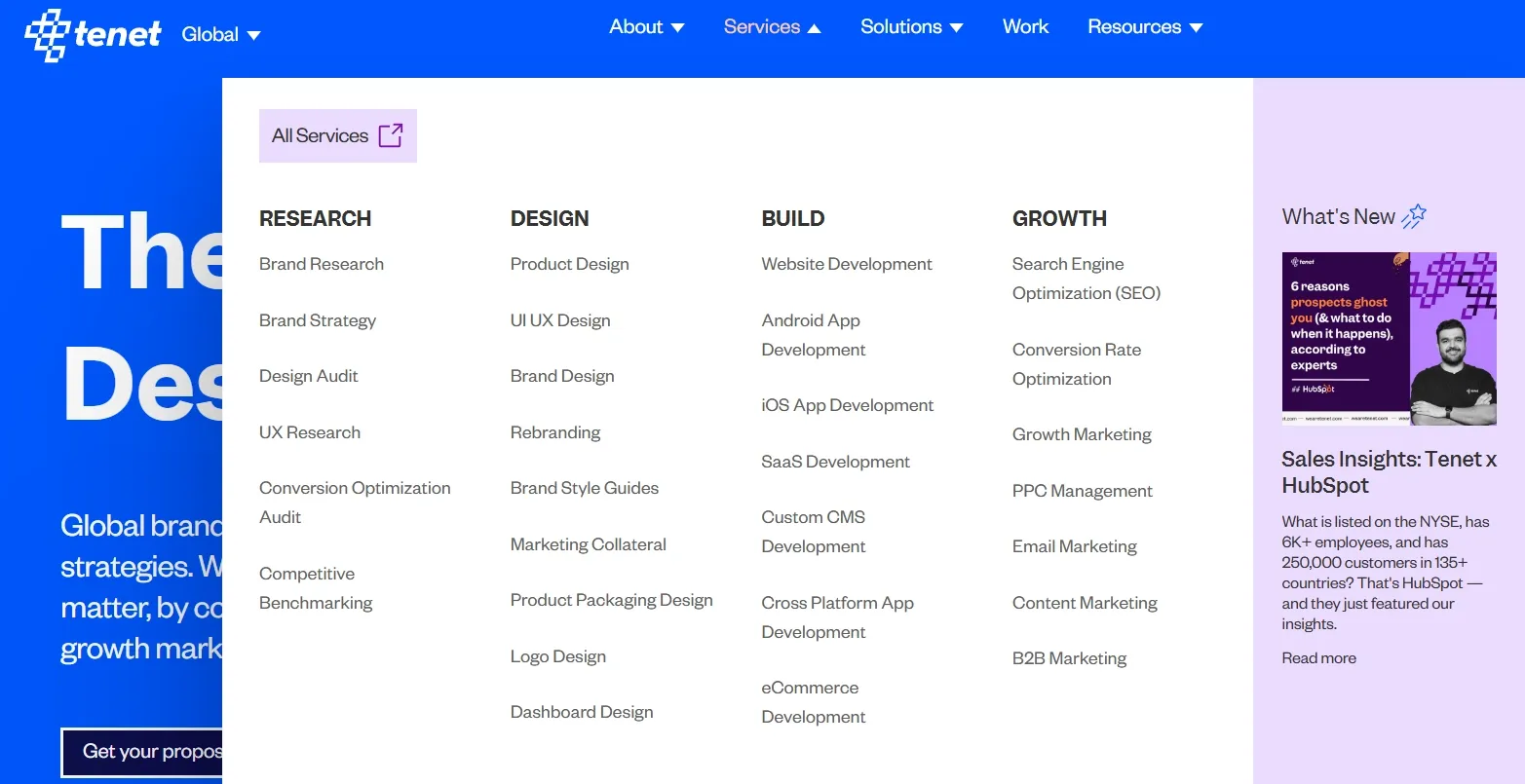
To help users navigate efficiently, it’s essential to design flows that reflect each role’s responsibilities. Visualizing these workflows makes it easier for readers to understand how role-based onboarding reduces friction and accelerates activation.
The image below displays the services page, separating the research, design, build, and growth phases, which helps users follow their specific workflow steps.
2. Contextual triggers instead of tooltips
Many SaaS products rely on tooltips to guide users through the interface. The problem is that users often click through these tips quickly without understanding what to do next. This slows adoption and can create confusion.
A more effective approach is to use contextual triggers.
Here is an example that showcases contextual help:
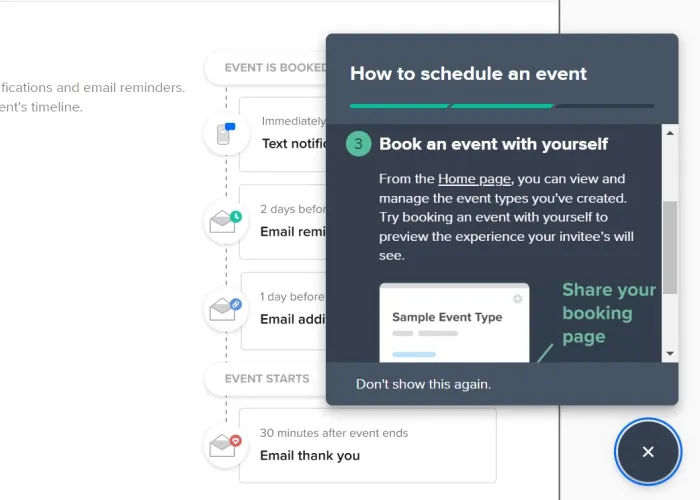
These are prompts that appear only when a user reaches the right point in their workflow. For example, instead of showing a tooltip for every feature at signup, the system displays guidance after the user completes a necessary step.
This ensures that users always see relevant instructions at the right moment. It keeps them moving through the workflow in the correct order and helps them adopt features faster.
3. Anticipating errors
Good onboarding does not wait for users to make mistakes. It actively plans for the most common points of failure and resolves them as they happen. Many users drop off not because the product is complex, but because a small error stops their progress with no clear way forward.
For example, when onboarding requires connecting an external account, users often enter incorrect credentials or miss a required permission. Instead of showing a generic error message, the system should validate inputs in real time and explain what went wrong.
Inline guidance helps users fix the issue immediately and continue onboarding without restarting or contacting support. This reduces frustration and prevents unnecessary drop-offs.
4. Activation checkpoints tied to metrics
Every onboarding step should lead to a clear and measurable outcome. These outcomes define whether a user has actually progressed, not just clicked through screens. Examples include completing a setup flow, running a first report, or finishing a core task that delivers value.
The image displays activation checkpoints with metrics, shows completed setup flows and core task progress to guide improvements.
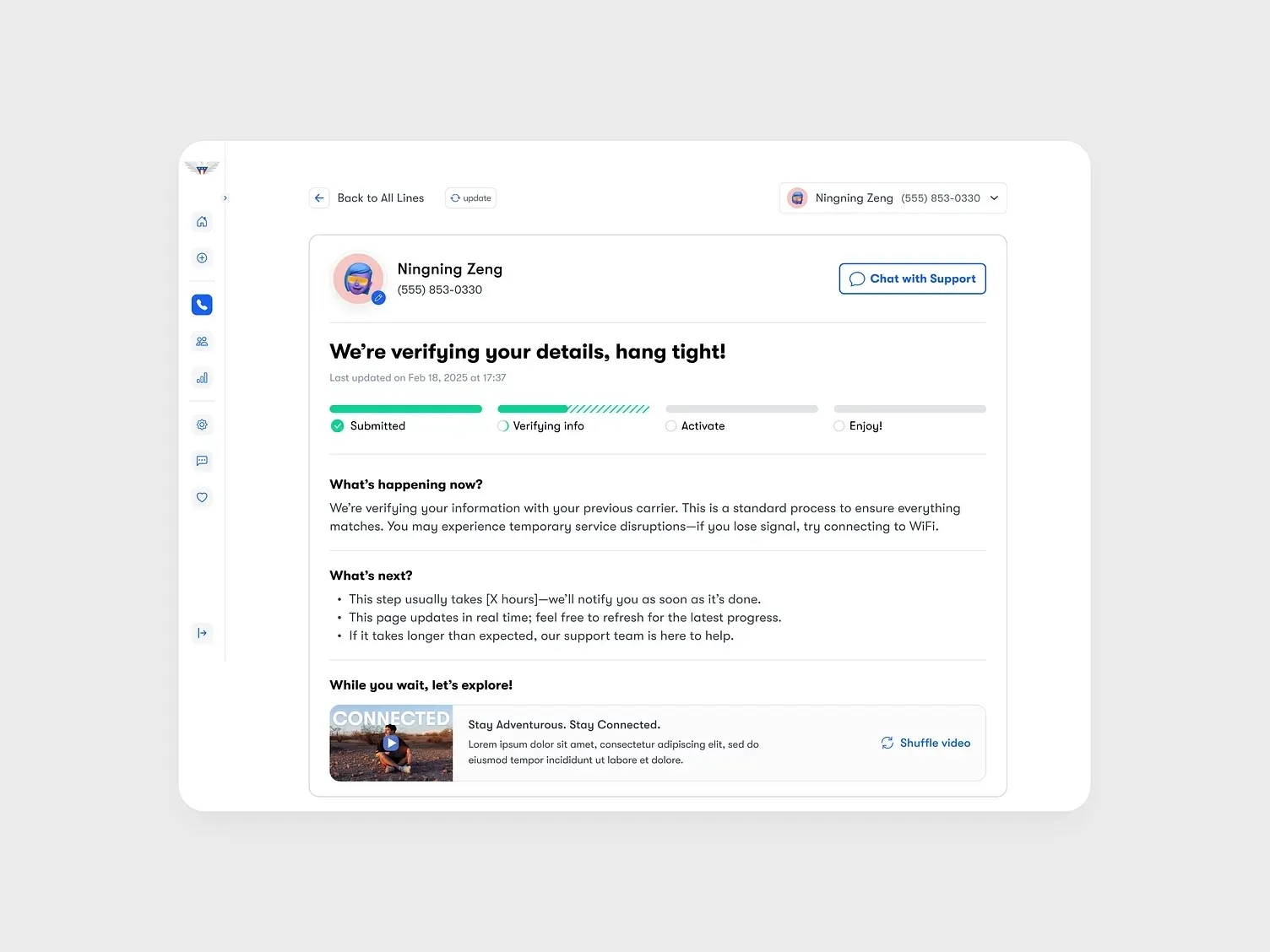
By tying onboarding steps to activation checkpoints, teams can track progress accurately and see where users slow down or drop off. This data makes it easier to improve onboarding based on real behavior instead of assumptions.
When checkpoints are well defined and aligned with product value, users reach first success faster and are more likely to continue using the product.
👉 For a deeper look at UX design principles that directly impact SaaS performance, see our guide on SaaS UX Design.
Onboarding UX patterns that actually work (with real examples)
Below are onboarding UX patterns we use in real SaaS products. Each one is explained with before vs after thinking, a real SaaS example, what teams usually copy wrong, the metric it affects, and when the pattern should not be used.
1. First-Value (Aha Moment) Onboarding
First-value onboarding is about getting users to experience a meaningful product outcome in their first session. Instead of guiding users through setup or feature explanations, the flow removes non-essential steps and pushes users directly toward the action that proves the product is useful.
This works because most SaaS users evaluate tools based on whether they can solve a specific problem quickly. When that confirmation does not happen early, users leave.
Example
Duolingo is a clear example of this pattern in practice. After a quick signup, users select a language, set a daily time goal using a simple slider, and are immediately taken into a short interactive lesson.
The lesson includes tasks like matching words or speaking phrases, allowing users to complete a real learning exercise within minutes. Progress indicators and streak cues reinforce that early success without explanation.
This visual shows Duolingo's first-value flow - language pick to instant lesson in minutes:
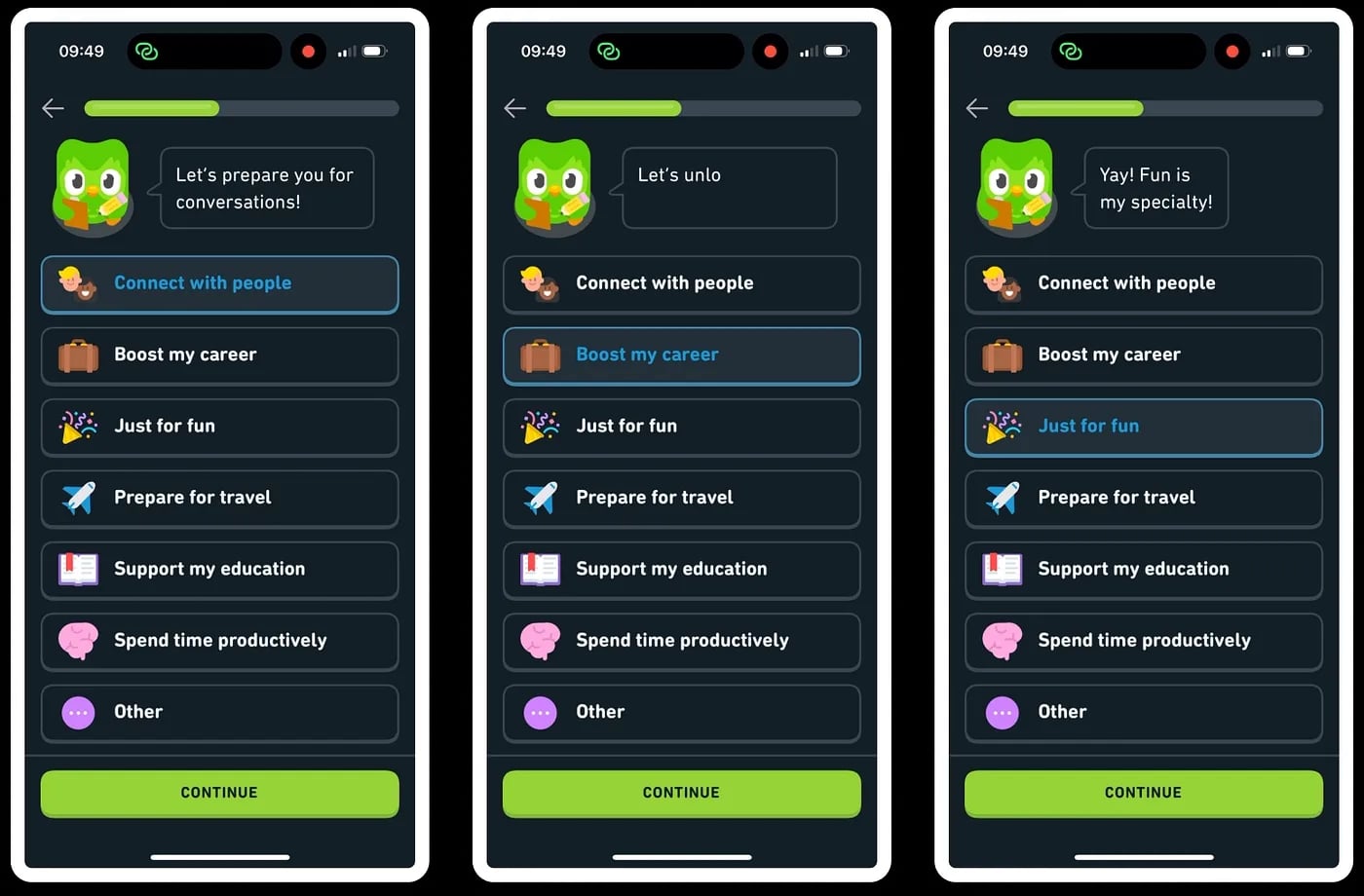
This approach shortens time-to-value and increases activation by letting users feel progress immediately, rather than telling them what the product can do. It also creates a natural reason to return, since users associate the product with visible improvement.
2. Contextual, In-Flow Guidance (Not Tours)
Contextual guidance appears at the moment a user interacts with a feature, instead of being shown upfront as a product tour. The help is embedded directly into the interface through short tooltips, inline messages, or lightweight prompts.
This works because users learn best while doing. Generic walkthroughs are often skipped, but small explanations shown during an action are easier to absorb and reduce mistakes.
By supporting users inside their natural flow, this pattern lowers cognitive load and builds confidence without interrupting progress.
Example
Slack uses this pattern through Slackbot and inline prompts during early usage. As users explore channels or begin typing messages, guidance appears inside the chat itself.
For example, Slackbot suggests "/remind" when users need to set follow-ups, or shows formatting tips while a message is being composed. These prompts are triggered by actions, not by time or completion of a tour.
The image below shows Slackbot suggesting the “/remind” command.
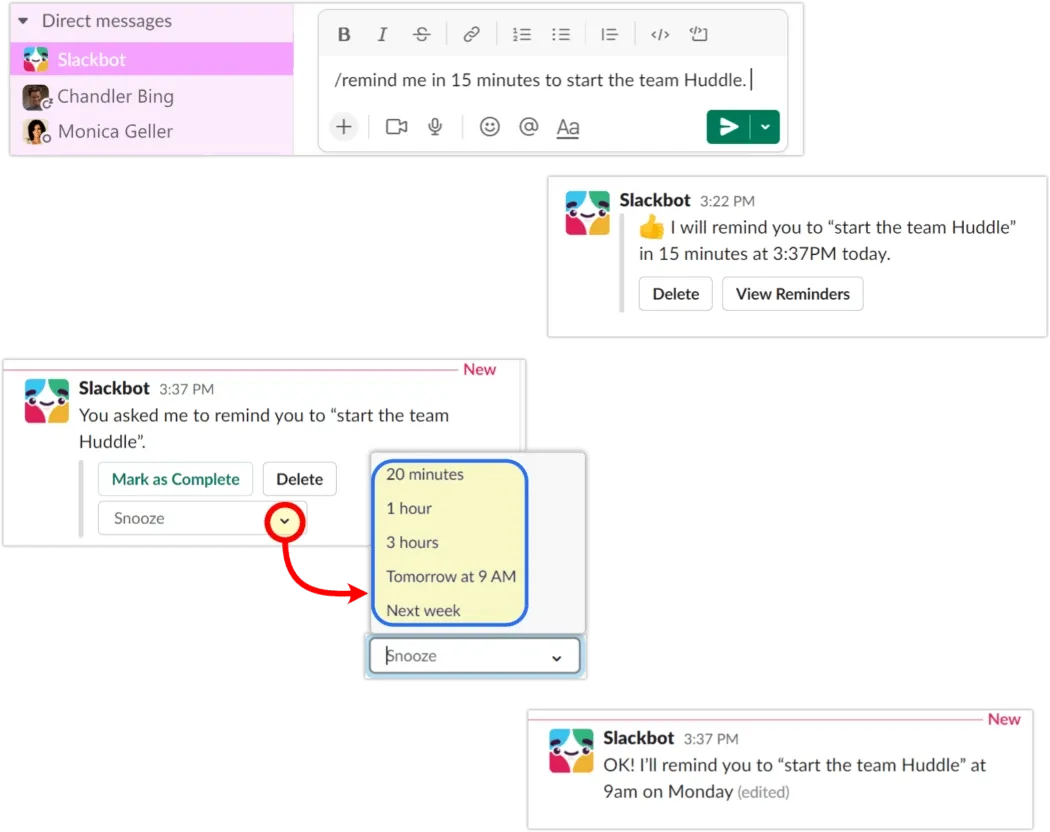
This approach helps teams reach their first meaningful action, such as sending messages, inviting teammates, or setting preferences, without leaving the workspace or reading documentation. As a result, users learn features organically while continuing their work.
3. Action-Driven Checklists (Progressive Completion)
Action-driven checklists present a short, visible set of tasks that guide users toward activation. Each item represents a concrete action, not a concept, and progress updates as tasks are completed.
This works because users prefer clear direction over exploration. Checklists remove uncertainty by showing exactly what to do next and how close they are to being fully set up.
This pattern is effective when it focuses on milestones, not features. Each step should unlock real product value and gradually introduce complexity as users gain confidence.
4. Purposeful Empty States (Guided First Actions)
Purposeful empty states are screens that appear before any user data exists and actively guide the first action. Instead of leaving the workspace blank, the interface explains what belongs on the screen and prompts the user to create or add something meaningful.
In this image, you can see how empty states are used to show the first action (which in this image is “Create Community”):
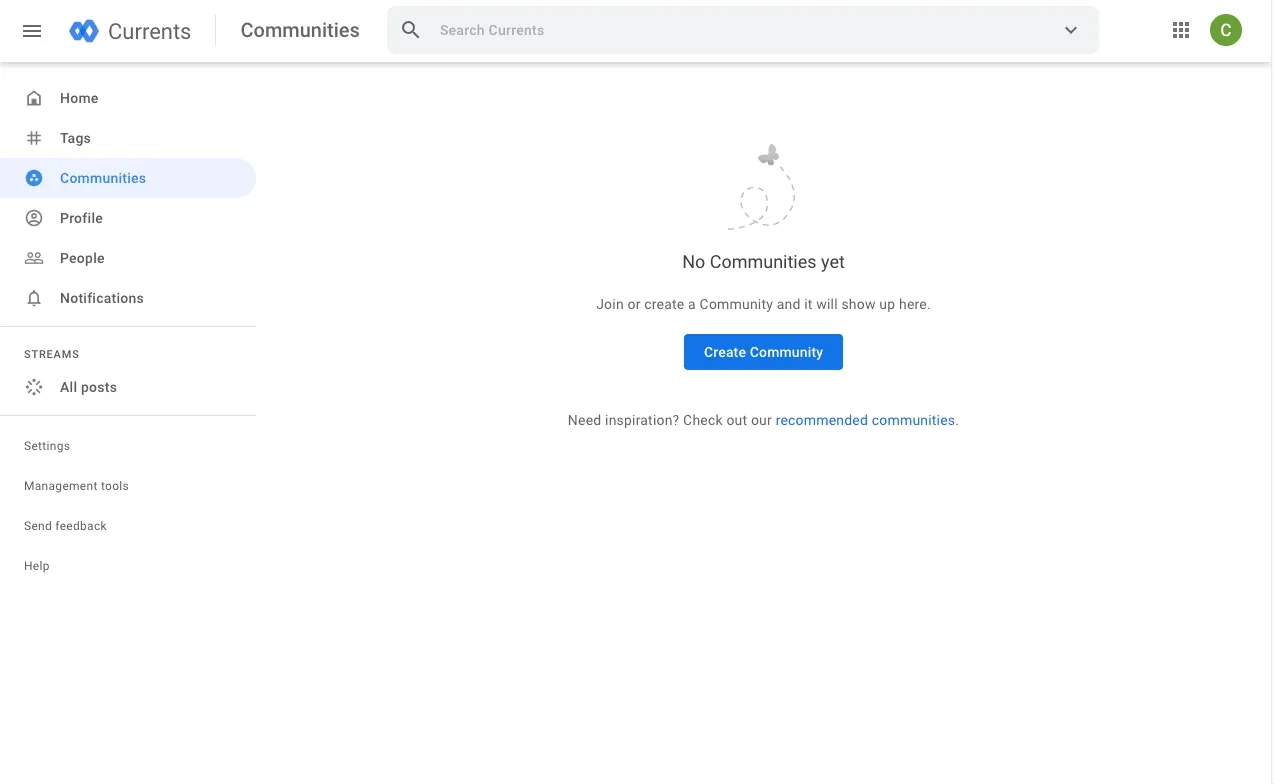
This pattern works because empty states appear at a decisive moment. The user has already entered the product but has not yet taken action. Clear guidance at this stage removes uncertainty and helps users understand the product by using it, not by reading instructions elsewhere.
5. Low-Friction Entry (Fast Access Before Setup)
Low-friction entry reduces the effort required to access the product for the first time. Signup is limited to essentials, and users are taken directly into the product before being asked for detailed setup or configuration.
This works because long forms and mandatory setup steps create early drop-off. Allowing users to experience value first builds confidence and motivation to complete setup later.
This pattern is most effective when early use does not depend on a complex configuration. It prioritizes exploration and proof of value over completeness.
Example
Canva allows users to sign up using Google or email in a single step.
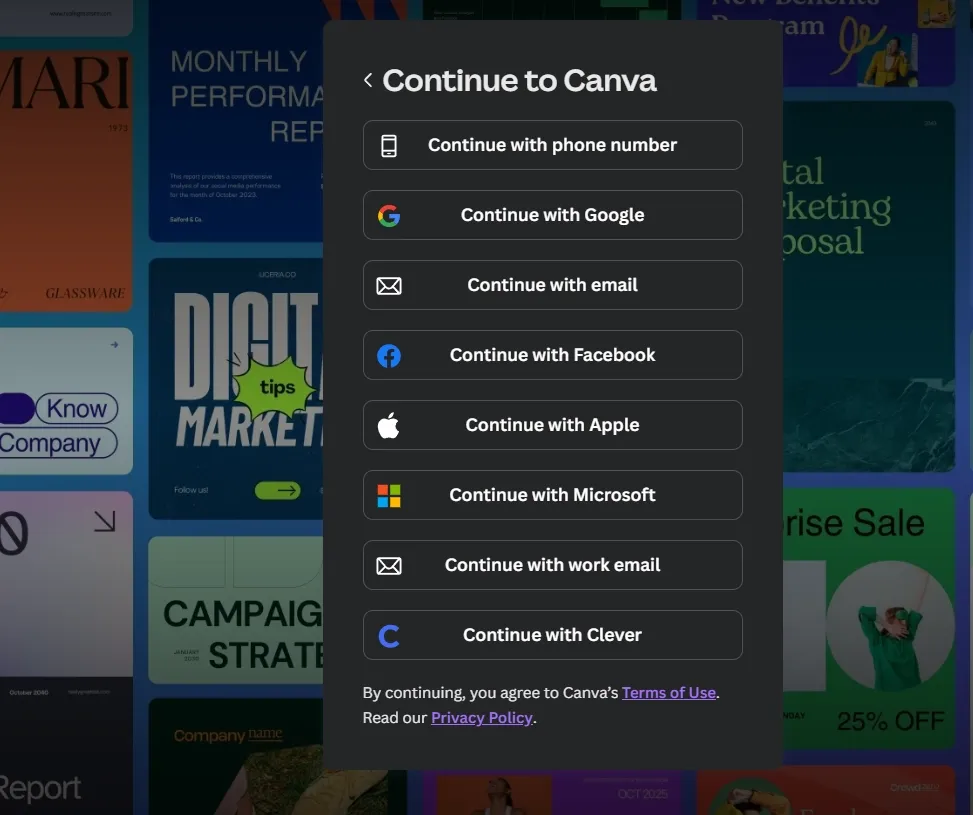
After signing up, users land directly inside the product with a prominent search bar for templates such as presentations, posters, or social media posts. There is no forced profile setup or onboarding form.
Users can immediately start editing a design using drag-and-drop tools. Actions like saving designs, exporting files, or upgrading plans are introduced only after users have created something tangible.
This fast access helps users produce a finished asset within minutes, increasing the likelihood they return and integrate Canva into regular workflows.
👉 Learn how SaaS landing page design guides users toward action and reduces drop-offs during early product evaluation.
6. Role-Based & Use-Case-Based Onboarding UX
Personalizing SaaS onboarding by user role or use case helps new users reach relevant features quickly and achieve early wins.
Role-based onboarding usually begins with two or three targeted questions after signup, such as role or team size, and then the flow shows role-specific checklists, templates, or guides.
Use-case onboarding focuses on intent, asking about goals like project management or content creation, and loads pre-configured setups or tutorials. The result is a linear but customized path that guides users toward meaningful first actions.
This also reduces confusion, drives activation, and improves early retention by aligning the experience with real workflows from day one.
Example: Asana’s onboarding structure
After signing up, Asana asks what you want to use it for. Options include personal use, team collaboration, project management, notes, or a knowledge base.
Based on your answer, Asana:
- Preloads relevant templates
- Adjusts the sidebar structure
- Suggests the first tasks inside the workspace
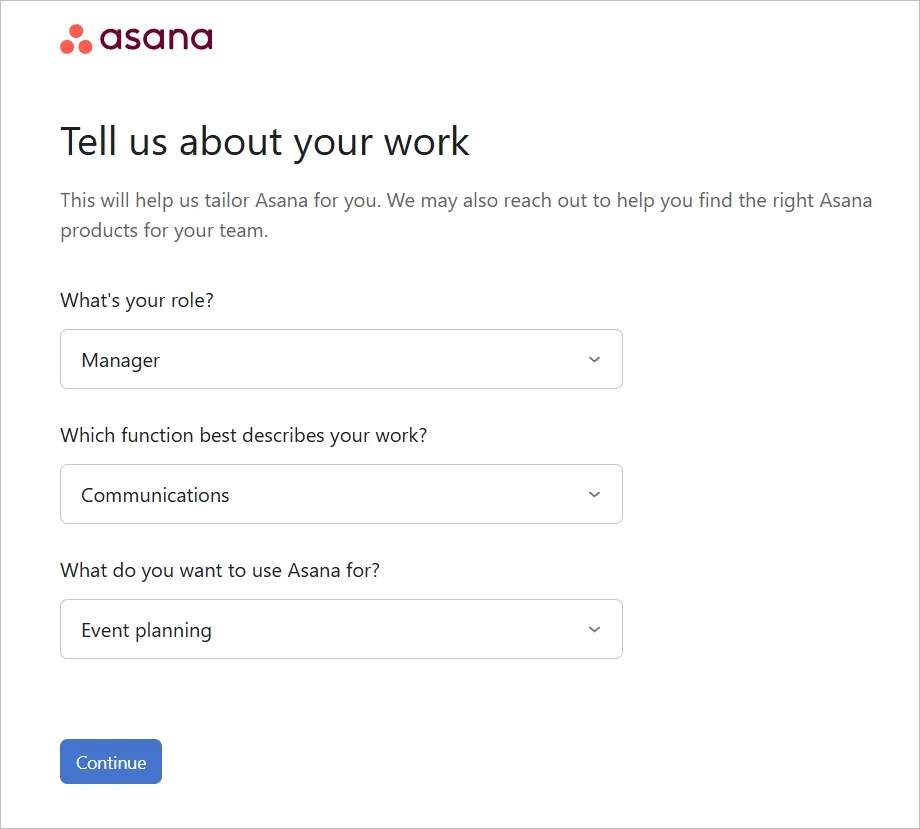
Why this works
The dashboard feels ready to use. Users do not start with a blank screen. They see a structured project that mirrors how their team already works.
Microcopy, UX Writing & Behavioral Triggers in Onboarding
Microcopy, UX writing, and behavioral cues guide users through onboarding flows and help them complete their first meaningful actions. Clear, simple text reduces confusion and shows users exactly what to do next.
Behavioral nudges, like progress indicators or small confirmations, motivate users to continue through a flow and reach important milestones. Together, these elements make onboarding smoother, helping users experience the product’s value quickly and encouraging them to return.
1. Clear, Action-Oriented Messaging
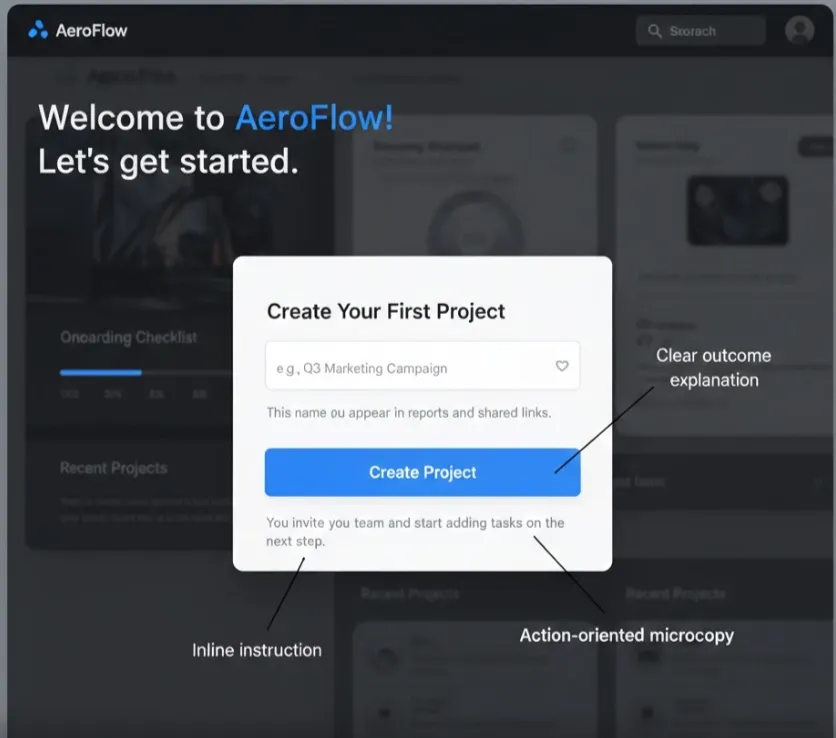
Microcopy should describe the action and its result, rather than using generic labels. Users understand faster what will happen when they click a button or fill a field, which reduces mistakes and frustration. Clear messaging also prevents users from abandoning tasks because they are unsure of the outcome.
How to Implement →
Use verbs that describe the result, like “Create Your First Project” instead of “Next.” Make field labels specific, e.g., “Enter Project Name” instead of “Name.” Keep instructions brief and readable, ideally one line or less.
Here is a sample that can help you understand this point better:
2. Tooltips, CTAs, and Progress Indicators
In-app guidance works best when it appears contextually, exactly where users interact. Tooltips, inline hints, and call-to-action buttons guide users without requiring separate tutorials. Progress indicators show users how far they’ve come and what steps remain, reducing uncertainty and encouraging completion.
How to Implement →
Position tooltips next to the relevant element. Use inline text to clarify actions, like “Add a teammate to start collaborating.” Show progress with bars or checklists, revealing remaining steps gradually. Keep CTAs clear and outcome-focused rather than generic.
👉 Learn how SaaS pricing page design and onboarding strategy work together to improve conversions and reduce friction.
3. Behavioral Nudges That Influence Decisions
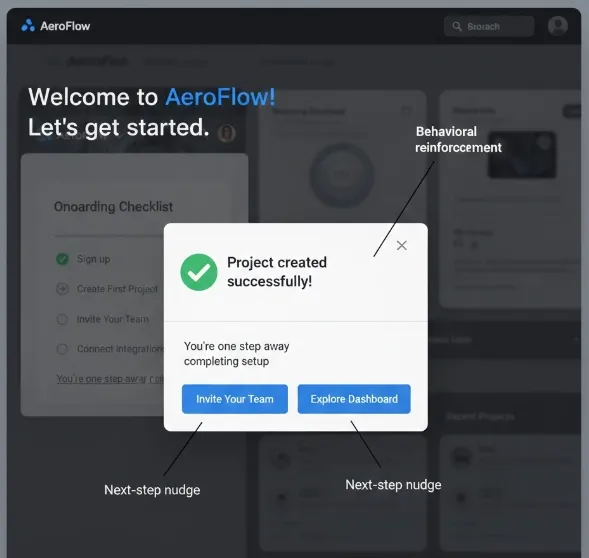
Subtle cues encourage users to take important actions without forcing them. Examples include goal reminders, small rewards, or notifications that highlight what happens next. Nudges help users complete tasks, form habits, and experience early product value.
How to Implement →
Use micro-animations, confirmation messages, or streaks to reinforce completion. Show visual cues when users reach milestones. Introduce gentle reminders for next steps, like “You’re one step away from finishing setup.” Ensure nudges align with the user’s goal and are not intrusive.
Here is an image that illustrates the given information in a practical way:
👉 Understand how outsourcing SaaS development impacts UX decisions, integrations, and onboarding complexity.

Final thoughts
Onboarding is the first real interaction users have with a SaaS product, and it sets the rules for everything that follows.
When onboarding UX is unfocused, users hesitate, skip steps, or leave before seeing value.
When it is intentional, users understand what to do, why it matters, and how the product fits into their work.
Across 450+ SaaS projects at Tenet, we’ve seen retention improve from 68% to 91% by fixing onboarding friction rather than adding features. The most effective onboarding relies on clear patterns, relevant paths, and precise UX writing.
To see how these onboarding UX principles come together in a real product, here’s an example from our work on a SaaS recruitment platform.
In this project, onboarding flows were redesigned to support multiple user roles, reduce setup friction, and guide users to their first successful hiring action faster, resulting in higher activation and sustained usage across teams.
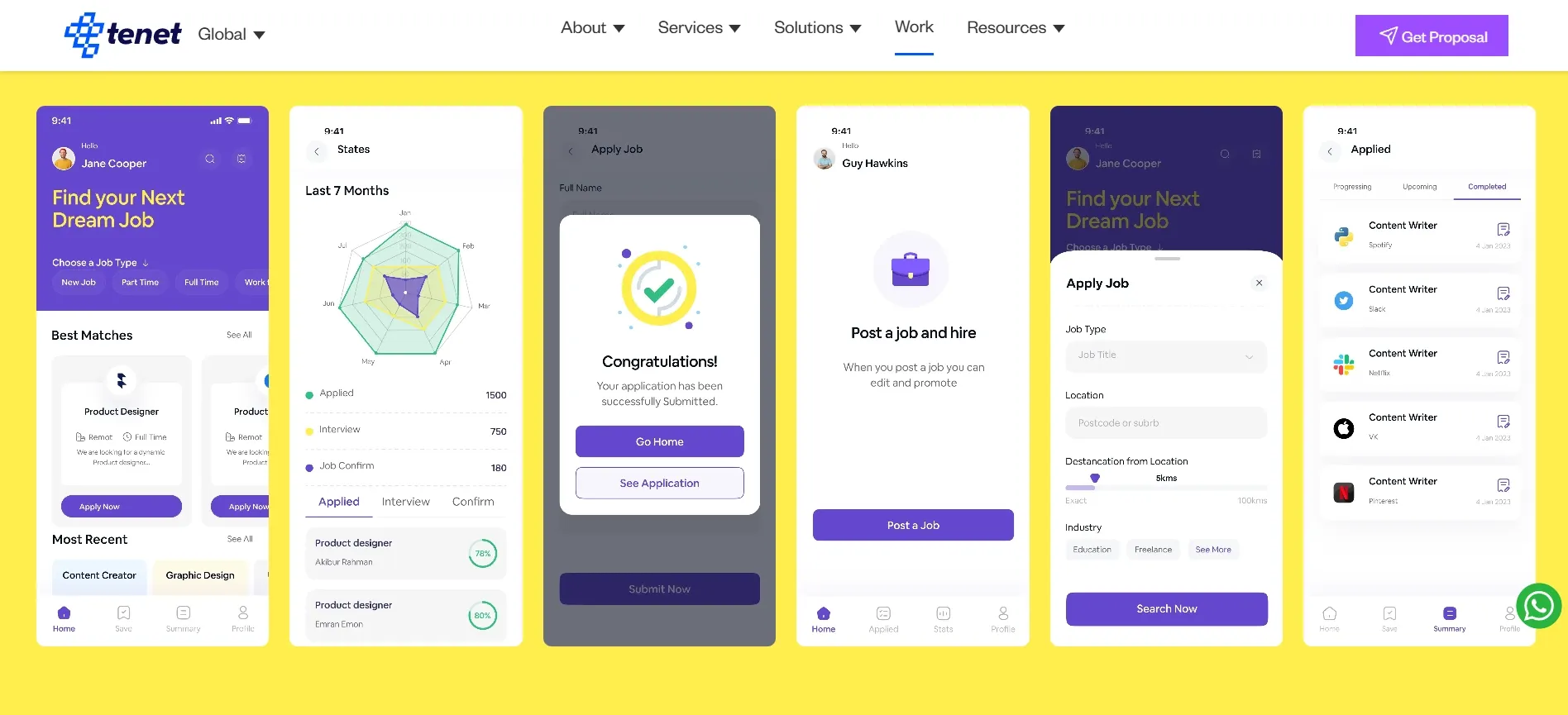
👉 Here, check out the full SaaS recruitment platform UI UX case study.
If you’d like a second perspective on your onboarding experience, feel free to get in touch for a quick, no-pressure discussion.
Need help planning or designing your SaaS website for conversion? Book a call.
Need help planning or designing your SaaS website for conversion? Book a call.














Got an idea on your mind?
We’d love to hear about your brand, your visions, current challenges, even if you’re not sure what your next step is.
Let’s talk


